DROIDSYNC is a Windows app that signs into your PAR/Brink portal
overnight, pulls each store's Sales Summary, and posts the bank deposit
and the daily credit-card journal entry into QuickBooks — with real
duplicate protection, so nothing ever posts twice.
Free while the beta lasts. Nothing to cancel, no card to enter.
Deposit postedNorthside · ties to the penny
Asked QuickBooks firstNot posted yet — safe to post
ScheduledRuns every day at 5:00 AM
Journal entry balancedTo the penny, or nothing posts
Coming soon
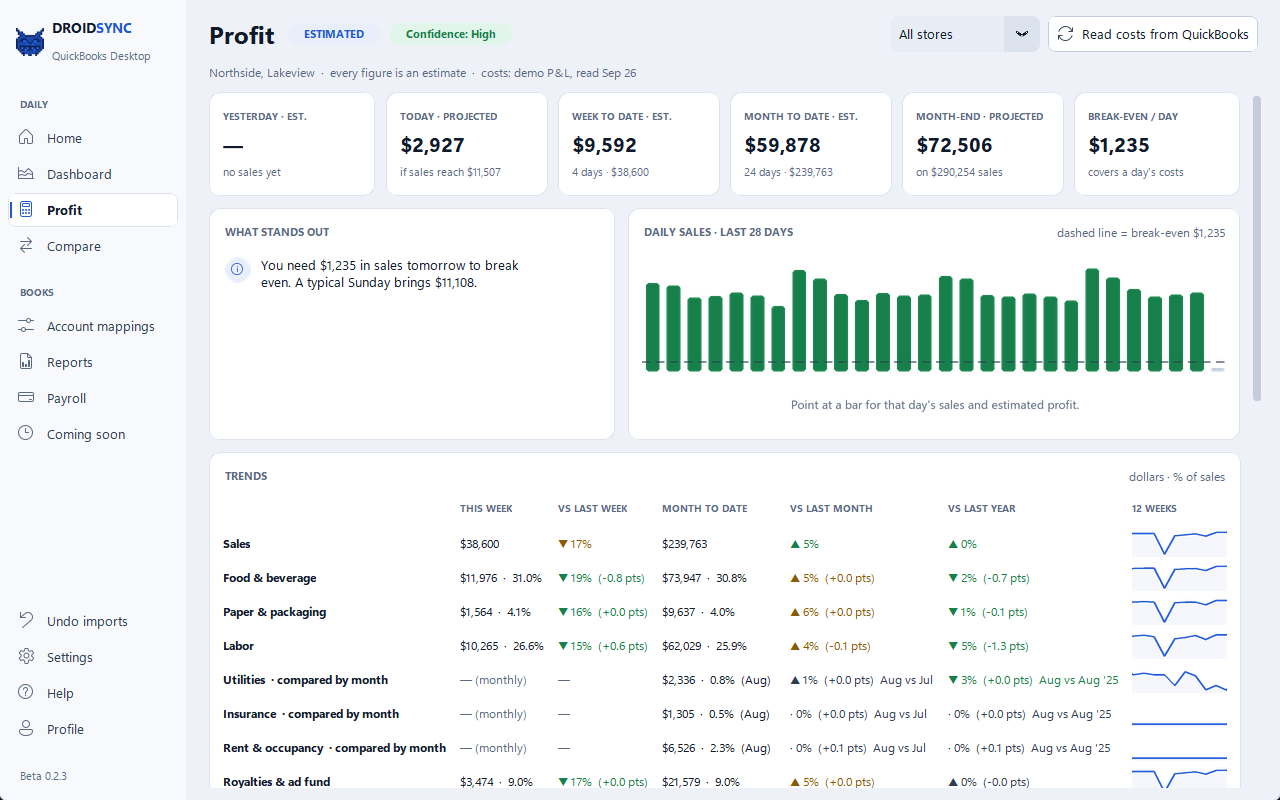
Predictive P&L.
A daily read on profit, not just sales — estimated from the PAR
sales DROIDSYNC already posts and the costs already in your QuickBooks. Coming soon; it is not in the
current beta.
Estimated profit, every dayYesterday's sales from PAR minus what
the day cost by your own books — food, paper, labor, rent, royalties and the rest. Every figure is
labeled an estimate.
Month-end projectionWhere the month is heading
if the rest of it runs like the last few weeks.
Break-even per dayThe sales a day needs before
it makes money, drawn as a line across your daily sales.
Week, month and year trendsThis week against
last, month to date against last month, and the same stretch last year — for sales and every
cost.
“What stands out”Plain-English
alerts when labor, food or sales step out of their normal range, and what tomorrow needs to break
even.
Read-only: it reads reports from QuickBooks and never writes to
them. On the bench now — no date promised. See what else is coming.
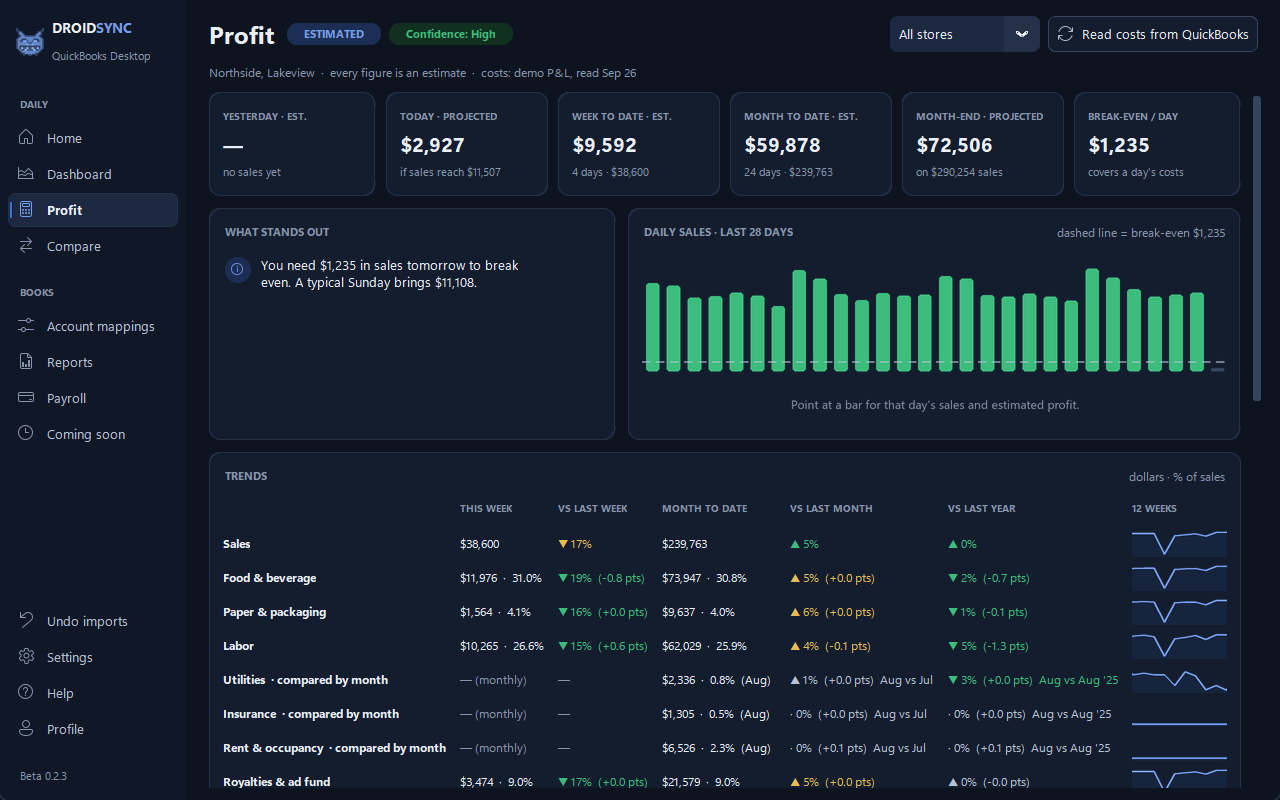
The Profit page in demo mode — made-up stores and made-up numbers.
Every night
From register tape to ledger.
One store or ten — each with its own QuickBooks company file.
Every night
Asked first
PAR / Brink POSEach store's Sales Summary
DROIDSYNCYour account mappings + the math
QuickBooksThe deposit + the journal entry
Watch it run
A night's sync, start to finish.
It signs in to the portal, exports each store's Sales
Summary, builds the deposit and the journal entry, and posts them — each one tied to the
penny before it counts as done.
DROIDSYNCQuickBooks Desktop
DAILY
Home
Dashboard
Compare
BOOKS
Account mappings
Reports
Payroll
Coming soon
Undo imports
Settings
Help
Profile
Beta 0.2.3
Good morningDEMO
2 stores · QuickBooks Desktop · runs daily at 5:00 AM · All good.
yesterdayPreviewStop after current stepRun daily sync
All stores posted for Fri, Sep 25
Synced Sep 26, 5:04 AM · 2 of 2 stores in QuickBooks
Next sync tomorrow 5:00 AM
0%
1Step 1Run
Get POS reports
05:00:02 → 05:00:41
2Step 2Run
Post into QuickBooks
05:00:41 → 05:04:10
Result
Clean · 0 problems
finished 05:04:10
Deposits posted$4,575.43Fri, Sep 25 · 2 stores
Net sales$10,378.332 stores
Journal total$10,949.14balanced
Over / short−$2.352 stores
View a POS report
Stores2 of 2 selected
NorthsideNorthside.qbw
Posted ›
LakeviewLakeview.qbw
Posted ›
Connect QuickBooksLog in to portal
ActivityRecentLog
Lakeview postedSep 26, 5:04 AM · deposit $2,062.81
Northside postedSep 26, 5:03 AM · deposit $2,512.62
Lakeview postedSep 25, 5:07 AM · deposit $1,618.58
Northside postedSep 25, 5:04 AM · deposit $2,352.70
Lakeview postedSep 24, 5:08 AM · deposit $1,894.78
Sync finished — all good2 stores · finished 05:04:10
An animated illustration of the app in demo mode (Northside and Lakeview), sped up. Real screenshots are below.
A closer look
Your books, at a glance.
Five screens from the app — select any one to see it full size.
01 · Home
One answer, first thing.
Home answers the question you have in the morning: did last night's books post? Every
store's status, yesterday's deposits, net sales, journal total and over/short, the live
activity log, and the last 30 days as a row of squares.
Each store shows Posted, Problems, No runs or Noted
Click a store's badge for what happened and what to do
Run daily sync, Preview and Payroll sync are one click away
Home, in demo mode.02 · Dashboard
Thirty days at a glance.
One card per store: a square for every day — green ran clean, amber ran with
problems, grey no run — beside the deposits, net sales and over/short for the last
30 days.
Built only from what the app posted — it never has to open QuickBooks to draw it
The morning summary flags a drawer that runs short or over several days in a row
Dashboard, in demo mode.03 · Compare
Every store, side by side.
Net sales, average per synced day, deposits, over/short and days synced for each store
— ranked, with your top seller called out.
The same 30 days of synced books as the Dashboard
One press of Refresh after a run
Compare, in demo mode.04 · Reports
Month-end, minus the chores.
Each chore is a card with one Open button: Close My Month, Sales Tax Helper, Missed-day
check, Deposit check, Monthly Excel export, Positive pay, Payroll files and Invoice import.
Every report is built from what actually posted
Missed-day check finds days that never made it into QuickBooks and backfills them
Reports, in demo mode.05 · Settings
Light, dark, or follow Windows.
Settings → Appearance offers DroidSync Light, DroidSync Dark, Follow Windows, or
Classic Dark — the original look — plus a choice of accent colour.
Nothing in Settings changes what the app posts
Moving to a new PC? Save my setup to a file carries your stores and mappings — never a password
Settings › Appearance, in demo mode.
The safety net
Built to be trusted with your books.
It refuses rather than guesses. Four things that make
handing over the nightly books feel safe — in the app's own words.
See it before it posts
Preview builds exactly what Run daily sync would send to QuickBooks — every
journal line and the deposit — from the day's report files and your account
mappings. QuickBooks isn't opened, and nothing is posted.
Preview — nothing is posted No problems found — the real run would post exactly this.
From the Preview window
Nothing posts twice
Before every write, DROIDSYNC asks QuickBooks whether that day's entry already exists,
and skips it if it does. The journal entry must balance to the penny or it isn't posted,
and the deposit is checked against the report's own bank-deposit figure.
Northside: posted to Northside.qbw - ties to the penny
From the Activity log (demo data)
Undo, with a safety net
Everything DROIDSYNC posts carries its own DroidSync marker in the memo. Undo imports
lists only those entries — your bookkeeper's hand entries aren't listed — and
removes the ones you tick once you type DELETE.
This permanently removes 4 DROIDSYNC entries from QuickBooks. Your bookkeeper's own entries are never touched. Type DELETE to continue:
From Undo DROIDSYNC imports
Problems, in plain English
When something needs you, the app says what happened and what to do, with a DS- code
you can look up on the Error Decoder — never a stack
trace. If a run stops partway, it says exactly which entries QuickBooks accepted.
[DS-514] QuickBooks wouldn't open the company file. What to do: Close QuickBooks if it's on another company; dismiss dialogs; or authorize the app.
From a store's status sheet
How it works
The nightly flow.
Set a time once. From then on, every night looks like
this — for one store or ten, each with its own QuickBooks company.
1
Step 1
It signs in by itself
Late at night, DROIDSYNC logs into your PAR/Brink portal and downloads yesterday's
Sales Summary for every store — a real Excel file, checked to make sure it isn't a
PDF wearing an .xlsx name.
Get POS reports
XLSXNorthside Sales Summary
XLSXLakeview Sales Summary
2
Step 2
It builds the day's entries
From your own account mappings it builds the bank deposit and the daily credit-card
journal entry, then checks its total against the report's own bank-deposit figure before
anything posts.
Northside · the math
Deposit built$2,154.56
Report's Bank Deposits$2,154.56
Journal debits = credits$4,838.46
3
Step 3
It posts to QuickBooks
Through Intuit's official interfaces — asking QuickBooks first whether that day's
entry already exists. Re-running a sync can't create duplicates. Ever.
Post into QuickBooks
Already in the books for 09/23?No
Journal entry · DroidSync memo
Deposit · DroidSync memo
4
Step 4
It tells you how it went
A plain-English morning summary is waiting with your coffee: what each store deposited,
net sales, over/short, and anything that actually needs a human.
The whole chain — fetch, math, post — in one button. Or zero buttons:
schedule it and stop thinking about it.
Run daily syncStep 1 · Get POS reportsStep 2 · Post into QuickBooksResult · Clean · 0 problems
Never-miss scheduling
Wakes a sleeping PC, starts as soon as it can if the PC was off, runs on battery, and retries every hour, up to four tries.
Preview
Exactly what would post, built from the day's reports and your mappings. Nothing is posted.
Never posts twice
Asks QuickBooks first, every time. Re-running a sync can't create duplicates.
Undo imports
Removes only entries carrying the DroidSync marker — never your bookkeeper's.
Missed-day check
Finds days that never made it into QuickBooks and backfills them in one click.
Dashboard & Compare
Thirty days of squares per store, and every store side by side, ranked.
Learn my books
Studies days your bookkeeper posted by hand and proposes your account mappings. Nothing is saved until you apply.
New money lines
A new tender shows up (hello, DoorDash) and the app asks where the money goes — one window, one answer.
Morning summary
A short plain-English note after every sync — e-mailed if you set it up, on the Desktop if not.
Close My Month
A month-at-a-glance calendar per store, with totals and the biggest over/short day — one page, or Excel for your accountant.
Payroll hours
Step 1 pulls the pay period's hours into a spreadsheet you can edit. Step 2 posts your
reviewed sheet as time entries. QuickBooks still builds the paychecks.
DailyWeeklyEvery 2 weeksMonthlyQuarterly
Step 1 - Pull payroll to spreadsheet
2Step 2 - Import reviewed spreadsheet into QuickBooks
Positive pay
The pay date's checks from QuickBooks as your bank's upload file, e-mailed on payroll mornings. You upload it; the app never touches the bank.
Plain-English errors
Every problem gets a DS- code with what happened and what to do, on the Error Decoder.
Also insideSales Tax HelperDeposit checkMonthly Excel exportPaid-outs, postedInvoice importPayroll files (Intuit IIF / CSV)Self-updatesGuided tourOptional accountSave my setup to a fileDemo mode
Screenshots
The app, up close.
Real screens from DROIDSYNC in demo mode. Select any one to see it full size.
Home. Did last night's books post? One answer at the top.A sync in progress. The progress bar, the step tracker and the live activity log.Finished. Every store posted, with a Sync finished notice.Dashboard. The last 30 days, store by store.Compare. Every store side by side, ranked.Reports. Month-end and filing chores, one card each.Settings › Appearance. Light, dark, or follow Windows.Sign in. The optional account — the app works the same without one.
Desktop & Online
One app — QuickBooks Desktop or QuickBooks Online.
There is one DROIDSYNC and one download.
The first thing setup asks is which QuickBooks you use; pick Desktop or Online and everything
after follows it. You can switch later in Settings → Stores. The POS automation, the
payroll sync, the monthly report and the safeguards are the same either way.
You use QuickBooks Desktop
DROIDSYNC posts through QuickBooks on the same PC with Intuit's official SDK. Setup
finds each store's company file (.qbw) for you.
You use QuickBooks Online
DROIDSYNC posts through Intuit's cloud API. You connect each store once on Intuit's own
sign-in page; the app never sees your QuickBooks password. Connecting a real company opens
as soon as Intuit approves DROIDSYNC — until then
email us
and we set you up personally, usually the same day.
Downloads your POS reports, does the math itself, and posts deposits, journal entries,
payroll hours and vendor bills into QuickBooks — with real duplicate protection: it
asks QuickBooks whether the entry already exists before posting.
Needs: Windows 10 / 11, your PAR / Brink portal login, and QuickBooks Desktop
or a QuickBooks Online subscription — no Excel, no Transaction Pro. Please read
the beta deal (and back up QuickBooks!) first.
What you need
— DROIDSYNC runs on your own Windows PC with your PAR/Brink portal login. Beyond that:
Not sure which QuickBooks you have?
Email us and we'll help you check.
Roadmap
Coming soon.
Real, planned work — honestly labeled, no dates promised.
Want one of these sooner?
Email us
and vote — the loudest requests get built first.
From the private lab
Five features in testing in our private lab build.
None of them is in the beta you can download yet. Forecasts and projections are estimates — never
a promise of what a day will bring — and none of these features posts anything to QuickBooks.
Every screenshot below is demo mode: made-up stores, sales, costs and weather.
In progress01 · Forecast tab
Next week's sales, store by store.
A 7-day sales forecast for each store, with each day's holiday and weather beside the plain
4-week same-weekday average — so you always see what the forecast is up against.
It starts from that 4-week average; a fit on your store's own history takes over only once it beats the average on your latest days
Holidays are marked by rule — the day before, the day itself and the day after
An hourly split for the day, from your store's own hourly sales once they have been pulled read-only from your POS portal. Until then it says plainly that it is an even placeholder split
Each morning's forecast is kept and checked against the real day once that day syncs
Worked out on your PC from your own sync history. An optional
AI-written summary stays off unless you add your own Anthropic API key, and even then it sends only
forecast figures, weather and day names — never a store name. Weather data by
Open-Meteo.com
(CC BY 4.0).
The Forecast tab in demo mode — made-up stores, sales and weather. The lab labels are the app's own.
In progress02 · Projected P&L
The week ahead, in profit terms.
The next 7 days' projected revenue, costs and profit: each day's forecast sales run through the
same cost model as Predictive P&L, built from the costs already in your
QuickBooks.
Seven-day revenue, costs and profit, the best and weakest day, and break-even per day
A day-by-day table and the week's costs by category
Labor switches to a line fitted on your store's own POS labor once 28 days of it have synced; until then the page says which labor figure it used
It uses the costs the Profit page read from QuickBooks and writes nothing back
Labeled an estimate on the screen and here: a projection is
not a result.
Projected P&L on the Forecast tab, day by day, demo mode — made-up sales and costs.
In progress03 · Weather-aware forecast
A rainy Saturday is not a sunny one.
On the Profit page, the next 7 days' weather — conditions, high, rain or snow — sits
beside two forecasts for each day: one without weather, and one moved by a weather term fitted on
your own store's sales. The gap between them is the weather alone.
The weather term is trusted only after a backtest on your own past days shows it beats both the plain same-weekday average and the same forecast without weather. Until then the page tells you to lean on the no-weather figure
A plain sentence estimates how this month's weather has moved sales compared with last year's — always labeled an estimate
The weather lookup sends a rounded location — never a store name, never a sales figure
Weather data by
Open-Meteo.com
(CC BY 4.0), with the US National Weather
Service (weather.gov) as a backup forecast. Open-Meteo's free tier is for non-commercial use, so this
ships only once a commercial weather license is in place.
The weather card on the Profit page, demo mode — the weather here is demo mode's made-up series, not a real forecast.
In testing04 · Industry benchmarks
How your costs compare.
Your food, paper, labor and prime cost as a share of sales over your last few complete months,
next to published quick-service ranges — one plain-English line per category, worst first,
in percentage points.
Every source is named behind “Where do these numbers come from?”
Static published figures from industry surveys and restaurant-accounting guides — not a live feed
A cost your books don't carry on its own line reads “not enough data” instead of being compared as zero
Read from the costs in your QuickBooks; nothing is written back
A range is what the published sources report for
quick-service restaurants, not a target set for your store.
The Industry comparison card on the Profit page, demo mode — made-up books.
In testing05 · Month-end autopilot
The month-end pack, drafted for you.
Pick the month and it drafts the pack from your own sync history: missing days, cash over/short,
deposits, POS versus QuickBooks, the sales-tax worksheet, your store monthly report inputs, and a
checklist of what is still yours to do.
The checklist marks each item done, to do or needs a look — and only you can tick anything as filed or submitted
“Build the month-end pack” writes an Excel workbook and a one-page summary into your Reports folder
Optional: have last month's pack drafted automatically in the first three days of the month, right after the daily sync — off unless you turn it on
It prepares and drafts. It never files taxes, submits a
report, sends e-mail or posts to QuickBooks — you review, then you file.
Month-end autopilot, demo mode — made-up stores and figures.
Also on the roadmap
In testingPredictive P&LEstimated daily profit from PAR sales and your QuickBooks costs, a month-end projection, break-even per day, trends and “what stands out” alerts. See what it does.
In testingSquare and XeroThe same nightly books for stores on Square, and the same journal and deposit posted into Xero instead of QuickBooks. Built; being tested on their sandboxes before they are switched on.
In progressGoogle sign-inSign in with Google for the optional DROIDSYNC account. Still optional — the app keeps working without an account.
In review3.9.16 improvementsSteadier nightly runs (a stuck QuickBooks open is retried, the backup reminder is handled on a locked PC, a pause between company files), a store-closed-days option so a closed day is not a missing day, and small fixes. In review before release.
Please read before installing
The beta deal.
DROIDSYNC is beta software, offered
free during early access. The current build is Beta 0.2.3: one download
for QuickBooks Desktop and QuickBooks Online. Here's the honest deal:
Back up QuickBooks before you use this software.
In QuickBooks Desktop: File → Back Up Company → Create Local Backup. It
takes two minutes, and it means that whatever happens during the beta, your books can always
be put back exactly the way they were. Do it before your first run — and regularly
after that.
It's free — in exchange for your feedback. We ask beta users to
tell us what works, what's confusing, and to report any bugs on the
feedback page or to
[email protected] (the DS- error code and
the log file from "Open log folder" make bug reports easy). Your feedback is what turns the
beta into a finished product.
Nothing to cancel. The beta is free while it lasts: there is nothing to
cancel and nothing on file to bill. If the free period ever ends, we'll say so well in
advance, out loud.
It's a beta — it may not work at all. Features can fail, change,
or be removed without notice. Expect rough edges. If a run fails, nothing is silently
half-done — but you may need to do that day's books by hand the way you do today.
Check your numbers. During the beta, verify every imported entry in
QuickBooks against your POS report. Do not rely on DROIDSYNC as your only bookkeeping process
yet — keep your current routine available as a fallback.
Actively supported. Beta means "not polished yet" — it does not
mean you're on your own. We read every report, answer every email, and ship fixes fast. If
something breaks, tell us and we'll work it with you until it's right.
You can quit any time. In the app, Settings → Advanced → Wipe
DROIDSYNC removes everything it saved on the PC and all of its scheduled tasks; then uninstall
it from Windows' own Settings → Apps list and remove its QuickBooks permission.
FAQ
Questions, answered.
Security and privacy
Where is my POS portal password kept, and who can read it?
In one file on your PC, portal.cred in the app's data folder
(%APPDATA%\DriodSyncDirect), sealed with Windows Data Protection (DPAPI) under
your Windows user account. Only your Windows account on that PC can unseal it; copied to
another computer or another user, the file is useless.
The password is never written to the settings file, the logs or a diagnostics zip, and it
is only ever typed into your PAR portal's own login page. “Forget saved password”
deletes the file. Because programs running under your Windows account can use the same
protection, the password is exactly as safe as your Windows login: give the PC a password
and lock it when you walk away.
Does DROIDSYNC ever see my QuickBooks password?
No. With QuickBooks Desktop, the app connects through
Intuit's QuickBooks SDK on the same PC. The first time, QuickBooks itself asks the company's
Admin whether to allow DROIDSYNC; the setup guide has you leave “allow access to
personal data” unticked.
With QuickBooks Online, you sign in on Intuit's own page and pick the
company. Intuit gives the app an access token for that company, which is sealed with DPAPI
on your PC.
To take access back: in QuickBooks Desktop, Edit → Preferences → Integrated
Applications → Company Preferences; in QuickBooks Online, disconnect DROIDSYNC under
Settings → Apps. Wipe DROIDSYNC deletes the tokens from your PC, but only
disconnecting in QuickBooks Online revokes the connection itself.
Can DROIDSYNC change anything in PAR?
No. Today it reads PAR the way you do: it signs in to your portal in its
own private browser window and downloads each store's Sales Summary report — and, when
you run payroll, the labor report. There is no feature that writes to PAR. It stops after two
login attempts in a session rather than risk locking your account.
The official PAR API connection that is being built is read-only by design — it can
only call PAR's “Get” operations — and it is not switched on yet.
What leaves my PC, and where does it go?
The app never uploads your QuickBooks company file or the POS reports it
downloads. These are the only things it sends, all over HTTPS:
A daily usage report to our receiver, always on: an install code (a
one-way hash of the Windows machine ID), the app version and edition, the Windows version,
the number of stores, whether setup is complete, whether the terms were accepted, whether
the schedule is on, and whether the last run was clean. Never sales figures, names,
e-mail addresses or passwords.
Diagnostics, only if you turn them on in Settings → Data sharing
(off by default): error codes seen, run counts and timing, which features are used, mapping
sizes and the names of report lines that aren't mapped.
Your e-mails, only if you enter an address: the morning summary (store
names and the day's figures), the monthly workbook and positive-pay files are sent to you
through our mail relay, mail.droidsync.net.
Postings to QuickBooks Online go directly to Intuit.
Referral codes if you use Refer a friend, and the optional account if you create one.
It also downloads the update notice at launch and, once a day, a small signed plan file
from droidsync.net that says whether the app is free and lets us retire an outdated
version.
Can you see my books?
No. We have no access to your QuickBooks company, your POS portal or your
passwords. What we can see is the daily usage report, the optional account if you create
one, referral codes if you use them and — if you turn e-mail on — the summaries
as they pass through the mail relay on their way to you.
A diagnostics zip is only made when you press “Create diagnostics zip”. It is
saved on your PC with every password, token and key stripped out, and goes nowhere unless
you attach it to an e-mail. It does include log lines with store names and daily
figures.
Do I need an account, and what does it store?
No — everything works without one. If you create one on the Profile
page, it is kept by our
account provider, Supabase: your e-mail address, a hash of your password if you set one, your
2-step verification secret if you turn it on, and for each signed-in PC its Windows computer
name, whether it uses QuickBooks Desktop or Online, how many stores it syncs, the date and
result of its last sync, and its referral months. Never your books, store names or
figures.
The app keeps only a sign-in session on your PC, sealed with DPAPI — never your
password. You can delete the account from the Profile page.
How are updates checked before they install?
At launch the app reads the update notice on droidsync.net over HTTPS. If
there is a newer version it asks you first, downloads it over HTTPS, and refuses to install
it unless the file's SHA-256 checksum matches the one published in the notice. Your
settings, saved password and QuickBooks connections are not touched.
The one exception: if the app fails while starting and a newer version is available, it
installs that version without asking, so it can recover.
Your books
What exactly does it write to QuickBooks?
For each store and business day: one journal entry — or a sales
receipt or an invoice, if you choose that under Account mappings — and one bank
deposit. When you run payroll, it adds time entries from the labor report; with Invoice
import, vendor bills. It can add a name QuickBooks needs for those, such as a missing
vendor or employee.
It reads your chart of accounts and item lists to match your mappings, and reads back
what it posted for the missed-day check, the deposit check and Undo imports. QuickBooks
still builds the paychecks; the app touches no pay rates.
How does it make sure nothing posts twice?
Each store's day gets its own reference number and a “DroidSync”
memo. Before posting, the app asks QuickBooks whether a journal entry with that reference
and date — or a deposit for that date with that memo — already exists, and skips
it if it does. Re-running a sync, or running it by hand after the scheduled run already
worked, does not create a duplicate.
What stops a wrong number from reaching my books?
The journal entry must balance to the penny; if debits and credits differ, it is not
posted.
The deposit is compared with the Sales Summary's own Bank Deposits figure, and any gap
is flagged in the log and in the morning summary.
The downloaded report must be a real Excel file, not a PDF with an .xlsx name, and by
default one downloaded that day.
Preview shows exactly what would post, without posting anything.
During the beta, please still check every imported entry against your POS report.
Can I undo what it posted?
Yes. Undo imports lists the entries created in the window you choose, from
the last 15 minutes to the last 30 days, whose memo carries DROIDSYNC's marker: journals,
deposits, sales receipts, invoices, payroll hours and vendor bills. It deletes the ones you
tick after you type DELETE. Hand-entered transactions are not listed.
Names it added along the way, such as a vendor or employee, are not removed. Deleted days
count as missing again, so Missed-day check can re-post them once the mapping is
right.
Running it
What happens if my PC is asleep or off at the scheduled time?
The schedule is a Windows Task Scheduler task set to wake the PC, run on
battery, start as soon as it can if the PC was off at that time, retry every hour up to four
times, and stop any run that takes longer than two hours.
Two things are up to Windows: you need to be signed in to Windows, and waking from sleep
needs wake timers allowed in Windows' power settings. If Windows won't accept those task
settings, the app falls back to a basic daily task and tells you.
Which Windows versions does it run on, and what does setup install?
Windows 10 or Windows 11, 64-bit. Setup keeps everything in the app's own
folder: if the PC has no Python it downloads Python 3.12 from python.org, then installs the
app's Python packages and the Chromium browser component it uses to open your portal (about
150 MB). It adds a Start-menu entry and, if you say yes, a Desktop shortcut. No Excel and
no Transaction Pro.
How do I remove DROIDSYNC and everything it saved?
In the app, Settings → Advanced → Wipe DROIDSYNC: it deletes
everything the app saved on the PC — settings and mappings, the sealed password and
QuickBooks tokens, run history, logs and its private browser profile — and removes all
of its scheduled tasks. It keeps a setup file you saved, downloaded reports and your
books.
Uninstall it from Windows Settings → Apps.
Remove its permission in QuickBooks: Edit → Preferences → Integrated
Applications in Desktop, or disconnect it in QuickBooks Online.
If you created an account, delete it on the Profile page first.
Know another store owner who still types the POS
report into QuickBooks every morning? Send them your code. When their install is up and
running, you each get a free month.
Find your code in DROIDSYNC under Settings → Refer a friend. Every
install has one. "Copy link to send" makes a droidsync.net link that carries it.
They enter it on the last page of DROIDSYNC's setup, or in Settings
→ Refer a friend within their first 30 days.
You both get a free month once their install has finished setup and been
used on 7 different days. One install can earn up to 12 free months.
DROIDSYNC is free during the beta, so the months are credited for when
paid plans start. No sign-up, no password, no account: your code belongs to your install, and
droidsync.net keeps only the codes and the anonymous install code (see
Safety & Security). The full rules are in the app under Settings
→ Terms.
Stay posted
New features, new versions, launch news — straight to your inbox. No
spam, unsubscribe any time by replying "stop".
You're on the list — talk soon.
Talk to a human
If the daily register-to-books grind is eating your mornings, email us and
we'll get you set up. Already a user with an error code? Use the
Error Decoder or just email us the code — a human reads every
message.
This site uses two cookies of its own to remember your appearance
setting and that you have seen this notice. No tracking, no advertising,
no analytics.
 DROIDSYNC